
Free Skill Learning Opportunity
And that’s why today I’m going to teach you a professional, yet very simple, skill. So, I am giving you a simple 5-minute tutorial. You can learn it quickly and start earning easily.And you’re just trying to learn it for free, even for ₹1. You won’t have to pay any fees here. And the tools we’ll use here will be completely free.
Article Introduction and Community Support
So, you just have to learn and then go and put them into practice. Just keep us in your prayers. Just remember that. That’s enough. So, I’m Gulfam Ali, a digital marketing expert. If you’re new to the channel, you can subscribe and hit the bell icon. You must press “Subscribe” so you’ll be the first to see new articles as they come out. And you can learn from them and improve your skills. Take advantage. So, let’s watch this article. Let’s start.
For example, in Pakistan and the subcontinent, we share one good habit. Even when we feel sad, we still motivate others. We always do. We’ll definitely tell this to someone. So today, we’ll learn how to earn money by using our strengths. And believe me, this can generate a very good income. Just like you, you have to learn it technically and then start working.
Accessing Gemini AI Tool
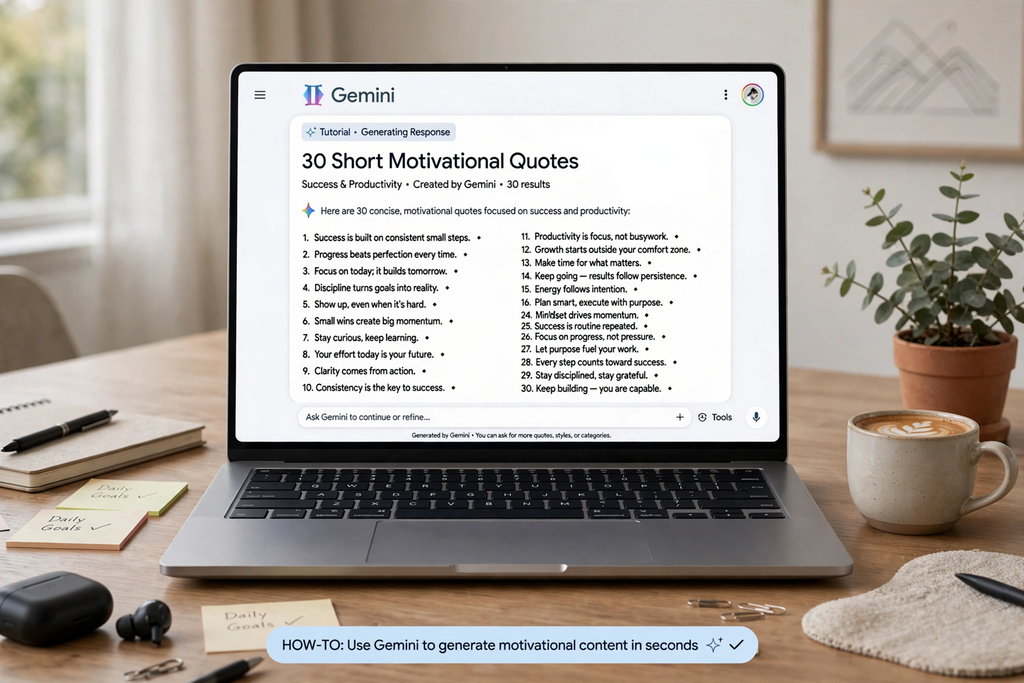
You probably know about Google, just like the Chachi Pitti app, Google has a tool to access it. So, open Google and search for “j.g.com app”. You can also just search for “Canva app”.Type in jammini.g.com, and this tool will open. Here, you simply sign up. Okay? You can do that by entering your Gmail ID. Sign Up.
After doing this, an interface like this will open. So, here you have to give this prompt to Gemini. Okay? You’ll find the prompt in the description box. Use whatever prompt you find here. You’ll find them in the description box. So don’t worry about them. Learn the basics here first.
Generating Motivational Quotes with AI
Watch right here: three short motivational courses related to success and productivity, each under 10 words. Okay? We’ll write a motivational course in less than 10 words, focusing on success and productivity. After entering this prompt, we simply press Enter. And here you go. Can see that here Gemini has generated 30 motivational courses for us. Okay? Look at this first one here: Action is the key to success.
Second, just start now. Second, just start now.Remember, people overrate perfection.Similarly, focus on the next step: small daily efforts equal big. And so, here’s number five: done is better than perfect. So, everything here is fine. These are motivational courses. We have to use them to earn money. And this is a very professional method. Thousands and millions of people around the world are earning well using this same method. So you too can learn and practice it.
Transferring Content to Google Docs
After this, look here: Now, we need to copy these 30 codes from here. And after copying, we’ll go to Google Documents. And Google Documents. Once we’re in, look, it says “Blank Document.” We need to open it and paste these 30 codes here.Now you can see them here.
Setting Up Canvas Custom Design Dimensions
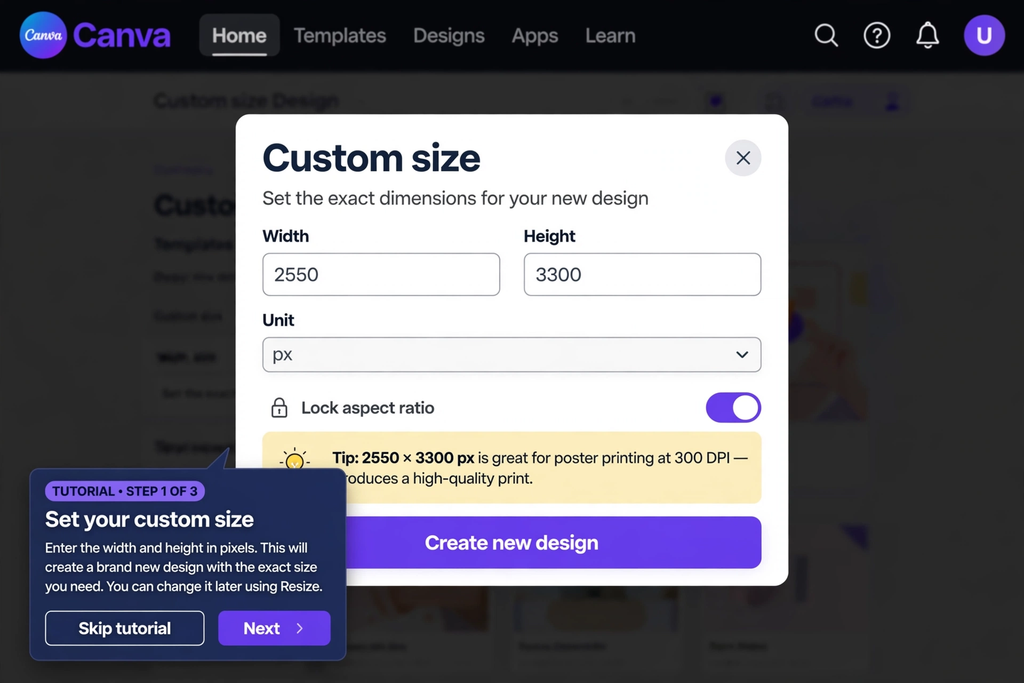
What do we do now? Is it? We have to open our CV. Most people know about CV, but for those who don’t, I’ll tell you that you simply go to Google. Here, you search cv.com. So, this is my CV. The official website will open here. Simply sign up here. After signing up, look at the CV interface. Now, look here, in the top left corner. We have “Create” written next to it. Simply click “Create.” And look here, on the left side, we have “For You,” “Sheets,” and “Docs.” If you scroll down, it says “Custom Size.”
You’ll need to click “Custom Size.” There are three options: width, height, and units. You can read it here.You should set its width to 2550. Okay? 2550. This is the width and height you should set. It’s 3300. Next, check the third number. It says “units.” Click on “units.” You will see different units. Options include px, lb, mm, and cm. You’ll need to select px for this purpose. After selecting the end units, simply click Create New Design. Click, and it will bring you to your editing page. A page like this will open.
Designing Quote Pages with Borders and Backgrounds
Now, here, you need to design this motivational code. To design, go to Elements and search for “border.” If you type “border” and search here, you’ll find a wide variety of borders. From here, for example, we select this border. And after selecting it, we place it above here. And now we need to move on to our first motivational quote. Look here, let’s copy it from here.
Action is the key to success. We copied it from here. And again, we return to cva. Look, there’s text here. We click on the text. From there, click on Add a Heading. And paste our motivational quote here. Here you go, like this. And then you need to adjust its size from here. After doing all this, you’ll definitely need to change its font. Use a good font here. For example, look here, we have different fonts. Let’s suppose we can use this one here.
Okay? Now, look, you can also use white for the background. But to make it more attractive, let’s change the color here. And look, we’ve made it light yellow here. Also, look, there are gradients here. You can also change the gradients. You can use it. But let’s make it light yellow or light green for now. Let’s turn the light yellow. Look, our first motivational code is ready here.
Creating Multiple Styled Quote Pages
Look here, it says “Ad Page.” You need to click on “Ad Page.” This second page will open in front of you. Similarly, you will create the third page. This will be the fourth page. You can do this by changing the color of the first page to yellow.
You can change the color of the second page to green. You can change the color of the third page to light blue. For the fourth page, you can change the color of the third page to light blue. You can make the light yellow. Similarly, you can make the light red. You can also make it black. And you can even keep some white. I’ll show you the second step here.
Look, the next step is very important. So don’t miss it. Click here to skip the article. I skipped a minute or two in the confusion. Maybe I’ll point out a point you missed. Then, when you try it out in practice, you might not understand it. So, when you’re learning, if you’re still learning it, learn it properly with courage.
Adding Visual Elements and Time Management Theme
Now, in the second court, it’s not mandatory to use the same border here. You can also use something else instead of the border. You can. For example, I have a motivational code about time that tells me how to manage my time. I want to avoid wasting it. So what I’ll do is take this timeline from here.
So, whenever there’s talk of motivational code, it’s impossible to avoid time management or wasted time. You can’t find any motivational support to save you. Because time is most urgent. And you have your biggest asset, your biggest asset is your time. So, let’s look at this time-related motivational code. The best time to start is yesterday.
We’ll copy it from here and move it to Canva. We’ll move it to the text here. We’ll move it to the heading and use it here. We’ll change its font here. We’ll adjust the text here. We’ll adjust its size here. And we’ll insert it here like this. There’s no rocket science involved here. There’s no elaborate work involved. It’s simple. Try to keep the font you used in the first place.
Use the same font as you used earlier. You can also change the color here. For example, let’s keep the color here light green. Okay? Let’s keep this one for example. And look, the best time to start was yesterday. And you made a really good point here.Now we’ve done it. This is our first. This is our second.
Enhancing Layouts with Custom Step Icons
Similarly, you have to do the third. Now, for example, in the third, let’s look here, this is our third course, Focus on Next Step. Now, in Focus on Next Step, you need to add an icon. For example, here we, if you go to cva, you’ll also find our steps icons here. If you go to Elements and search for steps, you’ll see these steps appear in different locations. Icons appear.
For example, let’s take this one. So, look, we have this icon. We can place it here. Now, this steps icon is here. If you come here and type the text “Focus on next step,” it will have a greater impact. Okay? The icon is there. This will increase credibility.
For example, here’s our text, and we can insert it here. Okay? Focus on the next step. Now, see if you do it this way. If you do this, your design will be excellent, and the reader will enjoy it. You’ll also enjoy creating it yourself. Now that’s it, designing and creating text is complete.
Exporting the Project as a PDF File
Now, after doing this, what do you have to do? You have to come here in Share. Click on download, and download it in PDF format. Okay? Always remember to download the motivational code packs in PDF format. So, from here, we’ll select the PDF and save it. After selecting it, we simply click “Download,” and the pack will download to our website.
Sustainable Monetization Strategy
After downloading, the question appears. The million-dollar question is, how do you make money from this? How do you make money from this? As I said, this is a professional-level skill. Therefore, I will share a method you can use to earn for a lifetime.
You can earn a permanent living from it. It’s very easy for me to point out the many fake websites here. I’ll gain your attention, make false promises. It’ll waste your time, it’ll waste mine. And you too won’t fall for someone like that. Don’t fall for those who tell you fake things just to gain your attention. And then, after you’ve worked there for two or three years, you’re wasting it.