Aagahi Aur Shuruaat
Assalamu Alaikum Pakistan, Hameed Naqeebi is at your service. Today we are not saying let’s learn AI, but rather we are going to learn AI. They can build their own AI. Watching this article, children will be able to create their own AI.
Chuttiyon Ka Sahi Istemal
And whatever objections people have, the question is: how and where do we learn? So, sir, this article is at your service. Take advantage of your children’s holidays and get them involved in AI, because this is the future.
Bina Coding Ke AI Program
You can create a program on your computer at home that will recognize your face and identify different things. Your facial expression will tell you whether you’re happy or sad. All this in a very simple way, and without any coding.
AI Kya Hai?
Let’s start the article.First, allow’s apprehend what AI, or synthetic intelligence, is. This is a completely quick overview. I’ll explain it to you, and then let’s get down to the practical side.
Machine Ke Sikhne Ka Tariqa
Essentially, it’s a machine that learns from you. You talk to this machine, show it things, and it stores all of these things in its data. Imagine you, I have a robot.
Robot Ki Example
Every day you display photographs of cats and puppies and tell them, "This is a cat, this is a dog." For some days, then, when you show a brand new picture, the robot automatically recognizes whether or not it’s a cat or a dog.
Mobile Face Lock System
As your mobile gets opened with the face lock feature because the mobile has an AI system installed, and when you enable the face lock feature, when you enable it, you show the mobile’s AI multiple images of your face, which it stores in its data, and then the next time you bring the phone close to your face to unlock it, it will use the image of your face stored in its data.
Practical Ki Taiyari
It matches your face and unlocks your phone. AI is going to teach you. So let’s go to our computers now. Learn how to, all you need is internet access, a webcam, and a laptop or computer.
Browser Open Karna
So let’s get started. Bismillah-ir-Rahman-ir-Rahim. Okay, viewers, we’re now back on our screens, or our computer screens. So, the first thing you need to do is to open your browser.
Browser Search
Click on whatever browser you use. Your browser will open and after that, you have to go to your browser. First, go to your browser and click here.
Teachable Machine Website
You have to go there and type “Teachable Machine” in the search above. Teachable Machine: This is your first link, which will open here. Click on this link.
Google Ka Free Tool
As soon as you click on this link, clicking on it will open an interface similar to this one. Let me clarify here that this is a Teachable Machine. It’s completely free.
Bachon Ke Liye Behtareen Platform
Google developed it five years ago and it’s packed with powerful AI. Initially, there is Starter for children; they did it to teach all this, and children make very good projects on it, and from here whatever they want to learn AI, they learn it from this platform only.
Project Start Karna
So let me get started. You see, there’s a “Get Started” button. I’ll click on it. This is the “Get Started” button. Click on it.
Projects Ki Qismein
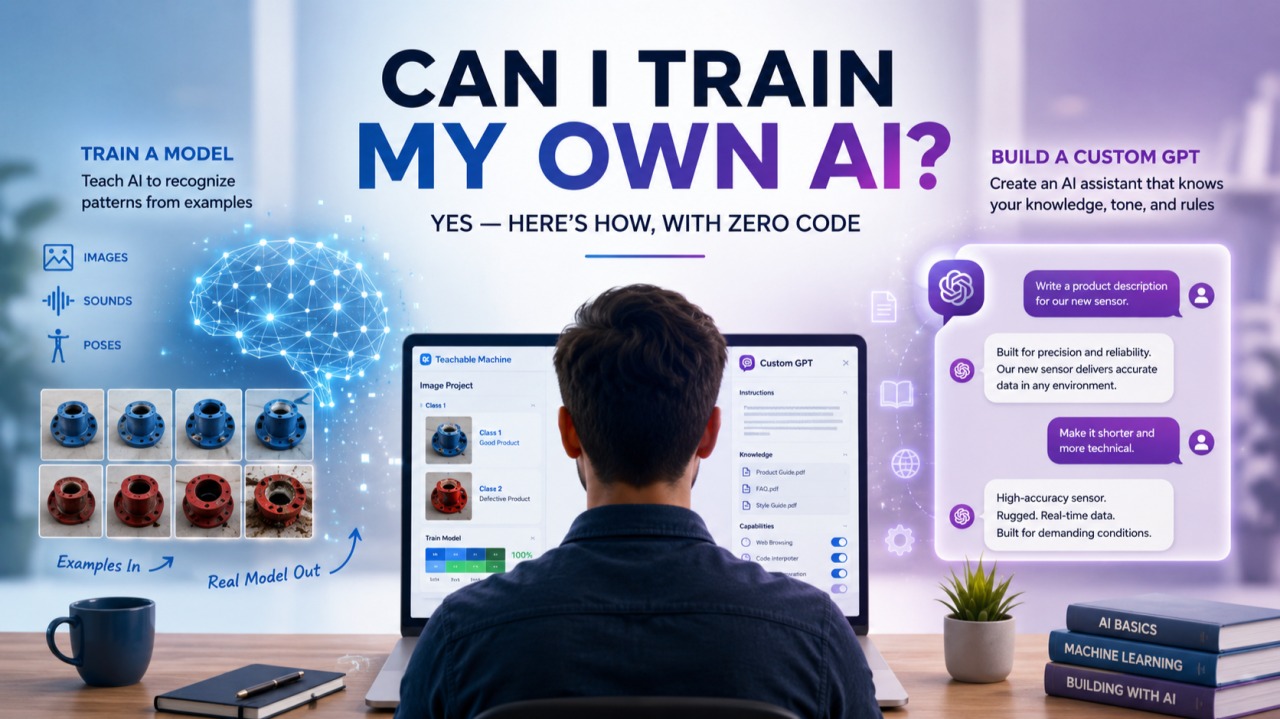
So, as soon as you click, you’ll have three types of projects open: one is an image project, the second is an audio project, and the third is a pose. This is a project.
Image Project Ka Chunao
What we’re going to do today is first work on the image project. The audio project is a bit more advanced, okay? And the pose project is even more advanced.
Aasan Tariqay Se Sikhna
But these three are for children, and you can easily learn them. Yes, you can learn it very easily. There’s no problem with it. So, first, let me click on the image project above.
Camera Ki Zaroorat
Well, before I click on it, let me tell you one thing. It’s crucial to have a camera, either if you’re using a webcam or a laptop. It’s necessary to put it here.
Standard Image Model
So let’s get started. I clicked on the image. So this window opens up for me. Now I can click on it again and select Standard Image Model.
Classes Samjhna
Let me go. Click here. Then you’ll get Class 1 and Class 2. Now let me explain what Class One and Class Two are.
Recognition Ki Example
Look, we have to tell the machine what it needs to recognize first. So, identification can always be between two things. For example, the example I’ll give you here is a thumbs up and a thumbs down.
AI Ko Train Karna
I’ll give the machine the down key to recognize. We’ll teach the AI to recognize thumbs up and thumbs down. We’ll first do this exercise. We will.
Classes Ka Naam Rakhna
So here, I’ll call this Class One “Thumbs Up” T-H-U-M-B Thumbs Up, and the other one is my pass Class Two, I give it “Thumbs Down”, thumbs down, okay.
Webcam Ka Tariqa
Now here we have two options: either I, should I go directly to the webcam? I will turn it on, see, I turned on the web and this is my article, okay.
Live Training
Now, whatever I tell it to do, I’ll tell it, “This thumb, thumb, is it okay?” So, what will it do? The thumb is for you. He’ll start teaching you. Okay?
Images Download Karna
And second, if I were to choose, I would have this option. No, you get off the camera for now. I’ve gotten off the camera. What should you do? Just go over it.
Google Se Photos Lena
I’m showing you the easy way, right? You go to Google it. Go here and write “thumb up”. You have to download 20 images of thumb up.
Folders Mein Save Karna
No matter how many thumbs you have like this, you have 20 thumbs up in which you have them, you have to download those 20 pictures. I have already downloaded it. I’ll go inside that folder.
Thumbs Down Ki Photos
Similarly, write “thumbs down” here, and you’ll see 20 pictures of it as well. You just need to download these pages and keep them in separate folders. I’ve already created them after downloading them so you don’t waste time.
Pictures Upload Karna
So, watch me show you, let me show you. I went to upload here. I went to this and went into my computer. So I have this thumbs up.
Thumbs Up Class Complete
I’ve downloaded them. So I’ll select them all, okay? And I’ll add them in. These thumbs-up pictures of mine have been added in. Now I, I’m going to cross this out here, okay?
Thumbs Down Upload
It’s out. Similarly, my Class 2 is my thumbs down. So now I’m going to go here to thumb down. Now, I’ll thumb down to the photos I’ve downloaded.
Training Ka Maqsad
I’ve selected them all. I’ve opened them. That’s it. You can go up to here. You must have understood my point. That’s why I’m doing this.
Machine Ki Training
We have to teach the machine.We ought to educate the machine to apprehend what a thumbs-up is and what a thumbs-down is. So that the following time they see a thumbs-up, they understand it as a thumbs-up, and the next time they see a thumbs-down, they understand it as a thumbs-down.
Automatic Systems
This is how it works, for example, in many, when we look inside the machines at the place, when you show your hand to the machine, the machine automatically opens the gate, yes, okay?
Attendance System Example
Just like when we mark our attendance in offices using thumb impressions, that’s also a thumb impression, basically.But what takes place when you placed it on? The machine recognizes your thumb as belonging to this character, so it opens the gate.
Model Train Button
Now you’ve done both. Is it okay? Thumbs up. You’ve created two classes: one with the thumbs down, and two with the thumbs down. Now what do we do?
Training Process
I call this the train model. Look, I’ll train it so it can learn both. Now I’ve moved it to training. You just press the button. You don’t have to do anything.
Model Testing
That’s it. Now he’s done training, okay? Now here’s the fun part for you. Look, he’s trained me, right? Now what will I do?
Result Accuracy
I’ll ask him: what’s a thumbs-up? What’s a thumbs-down? Look, just pay attention. Now I’ll show him. So look at this, thumbs up, this is 100%.
Accuracy Check
Look at this here, this is showing 99% that, yes, he did it. It has recognized that this is a thumbs-up. Make it 99% or 100%.
Thumbs Down Recognition
There’s a slight problem with the internet. The machine has recognized this: this is a thumbs up. Similarly, if I say thumbs down, what happens? Machine, it’ll recognize this too.
Light Ka Asar
Look, now it’s starting to recognize the thumbs down when I hit thumbs down, okay? So he understands that, no, this is good, but it’s confusing at many places.
article Result Accuracy
If you add articles, that’s good too. So, I’ll show you this through an article, I am. When I gave this thumbs down, it recognized the thumbs down as well.
Accuracy Mein Izafa
It said, “Yes, 57% accuracy.” Because of that, even some light has an effect, okay? As I take this a little bit better, look at the improvement: 67, he’s got 80%, 90% of it figured out now, okay, right?
File Option Se Check Karna
So it’s saying “yes, thumbs down”, okay? Well, I’ve shown you this through an article. The second way is that as soon as I type something inside it, I’ll put an image, for example, and I’ll tell it to walk me through the image.
Single Image Test
It has learned what a thumbs-up is, what’s thumbs down? So I call it here, come over here, over the file. Come over here, turn it on. I’m going to add an image inside this.
Thumbs Up Test Result
Look, first, I’m going to add an image of a thumbs-up, okay? I added this thumbs-up image. So, what will this give me? Let’s see.
Thumbs Down Test Result
The gentleman is saying it’s 99% sure it’s a thumbs-up. So, he’s learned what a thumbs-up is? I named it thumbs down. Look, I give it any picture.
Result Verification
I call it thumbs down. Tell me, what’s this? Do you recognize it or not? Recognizes it? Look, it’s got a thumbs down, a 100% thumbs down, thumbs down, okay?
Machine Khud Ko Behtar Karti Hai
So it recognized what a thumbs down is? So this is how you’ll learn it, okay? We’ll teach it first before we tell it. It will automatically improve any mistakes it makes.
Mood Detection Project
The more people work on it, the better. He’ll improve as he works. So this was a small project we taught him today: what’s a thumbs-up? What’s a thumbs-down?
New Project Open Karna
Similarly, if I, let’s make it a little more interesting. Let’s create a new class. Let me do this new project. Come to Projects. Is that right?
Happy Aur Sad Mood
From here, go back to Image Projects. Go to Image Projects and do this: go to Standard Image. And here I’m using my Webcam.
Webcam Expressions
Remember, you should have at least 20 photos: Class 1 to Class 2. Now I call this a happy mood, happy mood. And here we go for a sad mood, sad mood.
Happy Mood Record Karna
Is that okay? So this, look, let me turn on the webcam. I’ll show you everything using just the webcam. Now we need to record it, okay?
Sad Mood Record Karna
So look, I’m going to hold the record button while looking into the camera, and you’re going to press the “I” button, and I’m smiling. You have to smile from different angles. OK, that’s it.
Photos Collect Ho Gayin
You have 20 photos. OK? Close it here. Now you’ll go into sad mode. Turn on the webcam. Then press hold to record again.
Mood Model Training
Create a sad mode and then record. So, these are your 20 photos. So now you can get out of here. Now you can train this model.
Tab Close Na Karein
Train this model. Train him on what it means to be happy and what it means to be sad. I’m training him on this. He’ll learn it on his own.
Training Complete
You see this switch, don’t switch tab, don’t close this tab as long as it keeps working. It happens a little like this in seconds or in 1 minute, after minute which it’s working.
Expression Test
There’s no problem with that. So, look, your training is complete. Your training is complete. Now let me see if I’ll show you.
Save Aur Share Karna
Now, whether he understands the mood I’m going to create or not. Happy mood, 100%. Sad mode, see here. Happy went to the side, 100% happy mode.
AI Ka Asli Faida
So this is it, ok. Now we can export this, we can save this model, ok. Yes, you can share this with your friends that “I have made this model”.
Office System Ki Misaal
Now, what is its advantage? This is its advantage: this is AI, where the machine understands you. I’ll give you an example of this, the way you do your own thing.
Automatic Entry
What do you say? You mark your attendance by going inside the offices and putting your thumb in the machine. When you have to give input before marking your attendance, it takes your photographs.
Bachon Ke Liye Assignments
It will take pictures from different angles, okay, they will be stored inside it; as soon as you come the next day and touch it, place your thumb, it will recognize you and make your entry.
Hand Movement Assignment
He will give you these small things that you can teach children. Today we gave you training on pictures. After this, what do you have to do inside the house?
Model Export Karna
I’ll tell you: give the kids small assignments. Now, do the hand movement. Do the up and down movement, okay? Try this hand up and down movement.
Link Share Karna
If you give different types of assignments to children, they will start learning further. In the next lecture, I’ll tell you what to do, so you can export this to the world.
JavaScript Data
Look, we’ll export it here. You can upload and make the link shareable. Upload my model anywhere and share it with your model. You can upload it, okay?
Gharelu Practice
So, this is all we’ve created; this is all our data inside JavaScript. You can download it. Download it, keep it with you. Share it with your friends, saying, “I made this project.”
AI Ka Jadoo
Share it with your parents. By doing this, you can teach children little by little. So, kids, today we taught the AI how to thumbs up and down.
Voice AI Next article
Now, start by creating two new classes at home. For example, hands up and hands down. See if the AI recognizes these. No, show it to your parents and teach them the magic of AI.
Ikhtetam
So, kids, you’ve not only learned about AI, but you’ve also made your own, we also created an AI. If you enjoyed it, wait for the next article where we’ll build an AI that works with voice.
Please allow Hamid Naqeebi. God bless you.